
김쥬르에 개발일지
Spring Boot 각종 뷰 본문
이번엔 템플릿엔진을 이용하여
수정/삭제/생성 버튼을 추가하고
관련된 기능까지 코드를 작성해보겠습니다.
삭제기능 먼저 해보겠습니다.
삭제 코드는 자바스크립트로 작성을 해볼까요?
src/main/resources/static 디렉터리에 js 디렉터리를 만들고
article.js 파일을 생성한후 아래 코드를 작성합니다.
// 삭제 기능
const deleteButton = document.getElementById('delete-btn');

if (deleteButton) {
    deleteButton.addEventListener('click', event => {
        let id = document.getElementById('article-id').value;
        fetch(`/api/articles/${id}`, {
            method: 'DELETE'
        })
            .then(() => {
                alert('삭제가 완료되었습니다.');
                location.replace('/articles');
            });
    });
}
HTML에서 id를 delete-btn으로 설정한 엘리먼트를 찾아
그 엘리먼트에서 클릭 이벤트가 발생하면 fetch() 를 통해 /api/articles/ DELETE 요청을 보내줍니다
then() 메서드는 fetch()가 잘 완료되면 연이어 실행되는 메서드이며
alert() 메서드는 then() 메서드가 실행되는 시점에 웹 브라우저 화면으로
삭제가 완료되었음을 알리는 팝업을 띄워줍니다 location.replace() 메서드는 실행 시
사용자의 웹브라우저 화면을 현재 주소를 기반해 옮겨주는 역할을 합니다.
article.html 파일을 열어 방금 작성한 article.js를 임포트해줍니다.
(위치는 </body> 바로 위에 적어줍니다)
<script src="/js/article.js"></script>
서버를 실행 -> http://localhost:8080/articles/1 로 접속 -> 삭제 버튼 클릭
팝업창이 나타난 다음 확인을 누르면 삭제가 완료되고
글 목록 화면으로 이동한 다음 1번 글이 삭제되있는걸 확인할수 있습니다.
이번에는 글수정 과 생성 기능을 추가해보겠습니다.
수정 과 생성을 함께 개발하는 이유는
수정 과 생성은 같은 화면에서 벌어지는데요
생성을 하게되면 글 양식에 맞게 칸이 나눠져있고
안에 내용은 비어있습니다.
수정을 하게되면 생성과 동일하지만 안에 내용이
생성할때 입력했던 값으로 채워져있죠
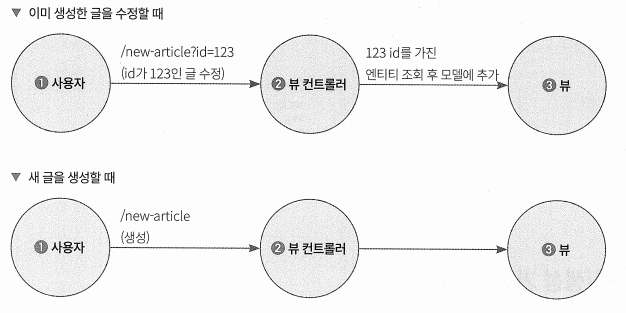
그림을 보면 글을 생성할 때는 URL에 별도 쿼리 파라미터가 필요없습니다.
하지만 수정할 때는 URL에 ?id=123 과 같이 수정할 글의
id를 쿼리 파라미터에 추가해 요청합니다.
쿼리 파라미터?
HTTP요청에서 URL의 끝에 "?"로 시작하는 키 값으로 이루어진 문자열이며 "&"로 구분합니다.
예를 들어 ?id=123일 때에는 키는 id , 값은 123이 되는것이죠
즉 쿼리 파라미터가 있는 경우
컨트롤러 메서드는 수정을 해야 하므로 엔티티를 조회해 기존 글 데이터를 모델에 넣어
화면에 보여줘야합니다. 쿼리 파라미터가 없는 때에는 새 글이므로 화면에 아무것도 보여줄 필요가 없겠죠
또한 뷰에서는 쿼리 파라미터의 id 여부에 따라 다른 [수정] 과 [생성] 중 적절한 버튼을 보여줘야합니다.
수정 화면을 보여주기 위한 컨트롤러 메서드를 추가해보겠습니다.
BlogViewController.java 파일에 newArticle() 메서드를 추가합니다.
@GetMapping("/new-article")
public String newArticle(@RequestParam(required = false) Long id, Model model)
{
    if (id == null) {

        model.addAttribute("article", new ArticleViewResponse());
    } else {
        Article article = blogService.findById(id);
        model.addAttribute("article", new ArticleViewResponse(article));
    }

    return "newArticle";
}
쿼리 파타미터로 넘어온 id값은 newArticle() 메서드의 Long 타입 id 인자에 매핑되고
이 값은 없을수도 있습니다 id가 있으면 수정 없으면 생성이므로 id가 없는 경우 기본 생성자를 이용해
ArticleViewResponse 객체를 만들고 id가 있으면 기존값을 가져오는 findByid() 메서드를 호출합니다.
이제 컨트롤러 메서드에서 반환하는 newArticle.html 생성하여 아래 코드를 작성합니다.
<!DOCTYPE html>
<html xmlns:th="http://www.thymeleaf.org">
<head>
    <meta charset="UTF-8">
    <title>블로그 글</title>
    <link rel="stylesheet" href="https://stackpath.bootstrapcdn.com/bootstrap/4.1.3/css/bootstrap.min.css">
</head>
<body>
<div class="p-5 mb-5 text-center</> bg-light">
    <h1 class="mb-3">My Blog</h1>
    <h4 class="mb-3">블로그에 오신 것을 환영합니다.</h4>
</div>

<div class="container mt-5">
    <div class="row">
        <div class="col-lg-8">
            <article>
                <input type="hidden" id="article-id" th:value="${article.id}">

                <header class="mb-4">
                    <input type="text" class="form-control" placeholder="제목" id="title" th:value="${article.title}">
                </header>
                <section class="mb-5">
                    <textarea class="form-control h-25" rows="10" placeholder="내용" id="content" th:text="${article.content}"></textarea>
                </section>
                <button th:if="${article.id} != null" type="button" id="modify-btn" class="btn btn-primary btn-sm">수정</button>
                <button th:if="${article.id} == null" type="button" id="create-btn" class="btn btn-primary btn-sm">등록</button>
            </article>
        </div>
    </div>
</div>

<script src="/js/article.js"></script>
</body>
수정할 때는 id가 필요하므로 input 엘리먼트의 type을 hidden으로 설정해 엘리먼트를 숨깁니다
th:value로 글의 id를 저장합니다 th:if로 id가 있을 때 수정버튼, 없을때 등록 버튼이 나타나도록 합니다.
실제 수정 , 생성 기능을 위한 API를 구현하기 위해
static 디렉터리의 article.js 파일을 열어 코드를 추가합니다.
// 수정 기능
const modifyButton = document.getElementById('modify-btn');

if (modifyButton) {
    modifyButton.addEventListener('click', event => {
        let params = new URLSearchParams(location.search);
        let id = params.get('id');

        fetch(`/api/articles/${id}`, {
            method: 'PUT',
            headers: {
                "Content-Type": "application/json",
            },
            body: JSON.stringify({
                title: document.getElementById('title').value,
                content: document.getElementById('content').value
            })
        })
            .then(() => {
                alert('수정이 완료되었습니다.');
                location.replace(`/articles/${id}`);
            });
    });
}
서버를 실행하고 http://localhost:8080/articles/2에 접속해
수정버튼을 누른후 기존에 게시글과 제목과 내용이 일치한지 확인해봅시다.
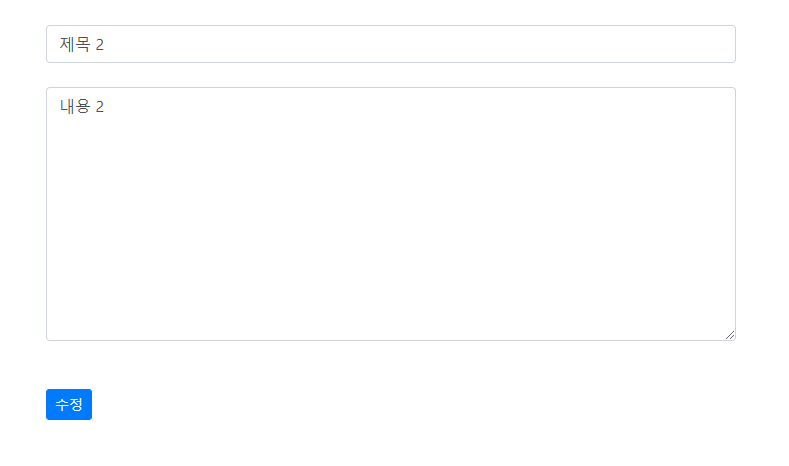
잘나오는건 확인이 됐고 이제 수정이 잘되는지 수정을 해봅시다
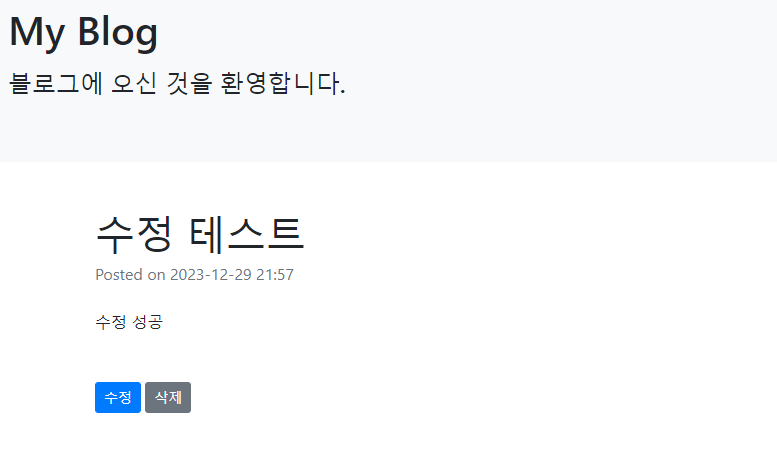
수정도 잘되네요
이어서 생성기능도 구현해봅시다.
article.ka 파일에 등록버튼을 누르면 데이터를 가져와 게시글을
생성하는 API 코드를 추가하겠습니다.
// 생성 기능
const createButton = document.getElementById('create-btn');

if (createButton) {
    createButton.addEventListener('click', event => {
        fetch('/api/articles', {
            method: 'POST',
            headers: {
                "Content-Type": "application/json",
            },
            body: JSON.stringify({
                title: document.getElementById('title').value,
                content: document.getElementById('content').value
            })
        })
            .then(() => {
                alert('등록 완료되었습니다.');
                location.replace('/articles');
            });
    });
}
id가 create-btn인 엘리먼트를 찾아 클릭 이벤트가 발생하면 id가 title,content인
엘리먼트의 값을 가져와 fetch() 메서드를 통해 /api/articles/ POST 요청을 보내줍니다.
계속해서 articleList.html 파일을 수정해 id가 create-btn 인 생성 버튼을 추가하겠습니다.
<!DOCTYPE html>
<html xmlns:th="http://www.thymeleaf.org">
<head>
    <meta charset="UTF-8">
    <title>블로그 글 목록</title>
    <link rel="stylesheet" href="https://stackpath.bootstrapcdn.com/bootstrap/4.1.3/css/bootstrap.min.css">
</head>
<body>
<div class="p-5 mb-5 text-center</> bg-light">
    <h1 class="mb-3">My Blog</h1>
    <h4 class="mb-3">블로그에 오신 것을 환영합니다.</h4>
</div>

<div class="container">
    <button type="button" id="create-btn"
            th:onclick="|location.href='@{/new-article}'|"
            class="btn btn-secondary btn-sm mb-3">글 등록</button>
    <div class="row-6" th:each="item : ${articles}"> <!-- article 개수 만큼 반복 -->
        <div class="card">
            <div class="card-header" th:text="${item.id}"> <!-- item의 id 출력 -->
            </div>
            <div class="card-body">
                <h5 class="card-title" th:text="${item.title}"></h5>
                <p class="card-text" th:text="${item.content}"></p>
                <a th:href="@{/articles/{id}(id=${item.id})}" class="btn btn-primary">보러가기</a>
            </div>
        </div>
        <br>
    </div>
</div>

</body>
서버를 다시 실행해 http://localhost:8080/articles에 접속한뒤
글등록 버튼이 생성되었는지 확인해봅시다.
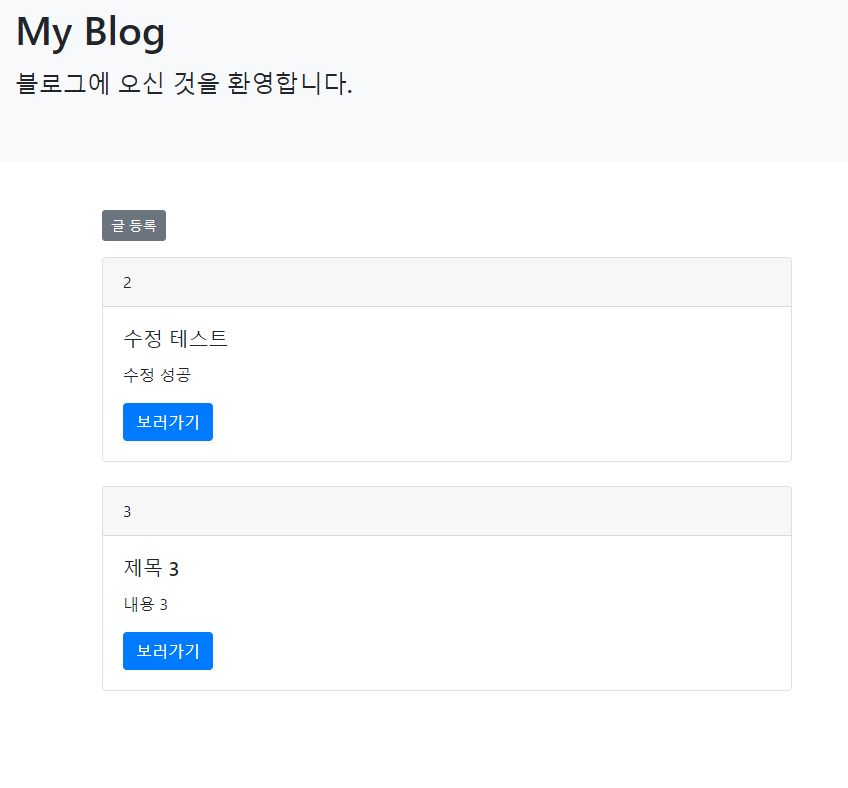
글등록을 눌러 내용을 입력해준후 게시글이 작성이 되는지 확인해보겠습니다.
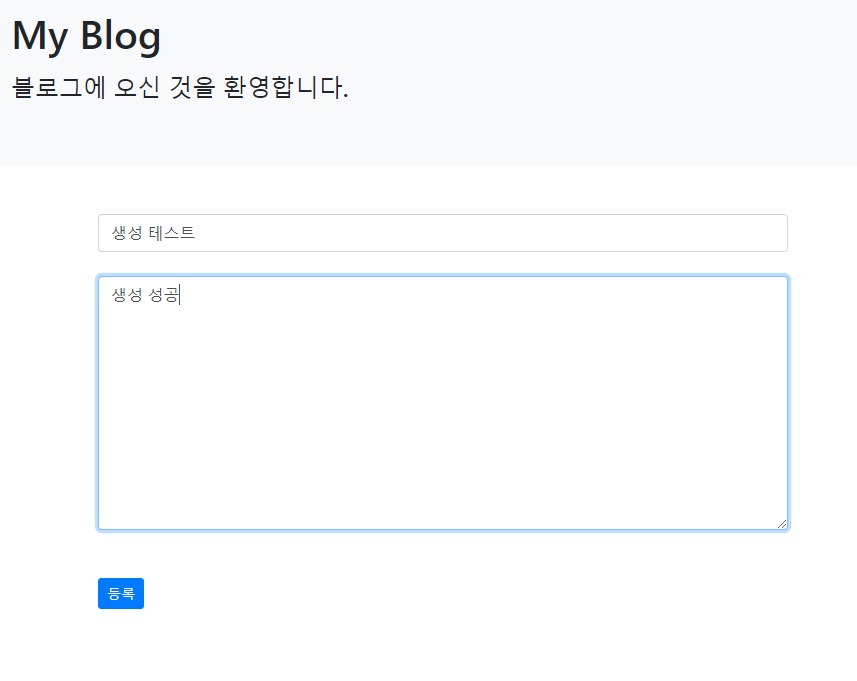
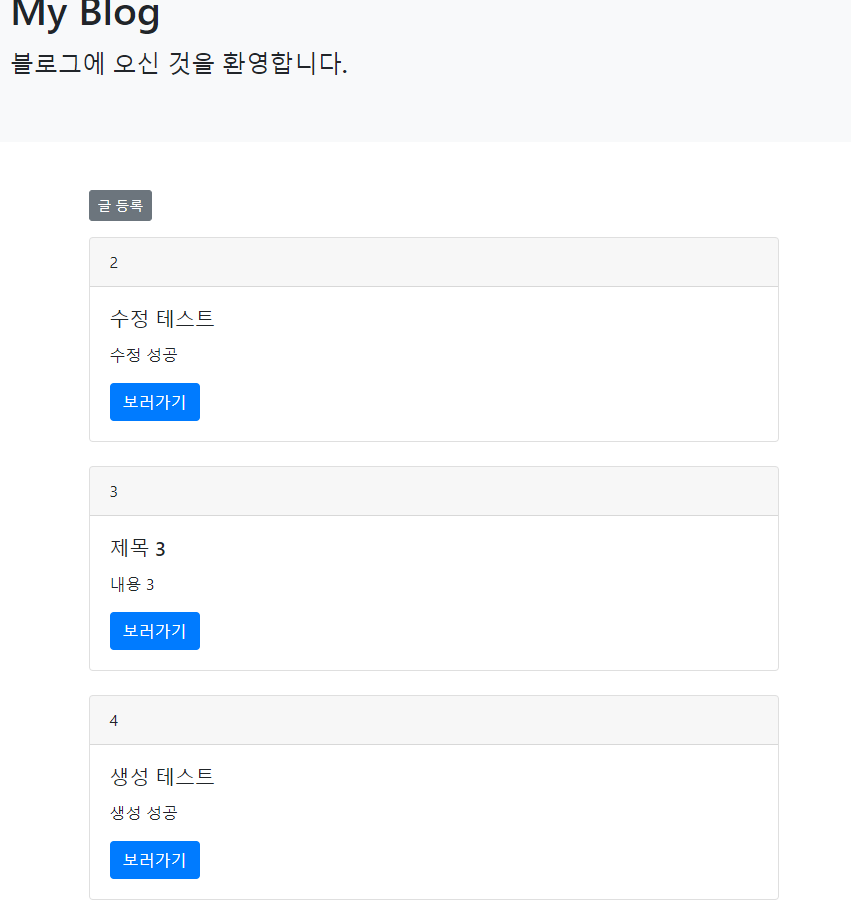
게시글 생성까지 잘되는지 확인이되었네요.
다음 포스팅은 스프링 시큐리티로 찾아오겠습니다.
'Spring boot' 카테고리의 다른 글
| Spring Boot JWT (1) | 2024.01.05 |
|---|---|
| Spring Boot 스프링 시큐리티 (0) | 2024.01.01 |
| Spring Boot 화면구성 (1) | 2023.12.29 |
| Spring Boot 수정 삭제 (0) | 2023.12.28 |
| Spring Boot 블로그 글 조회 (0) | 2023.12.28 |


